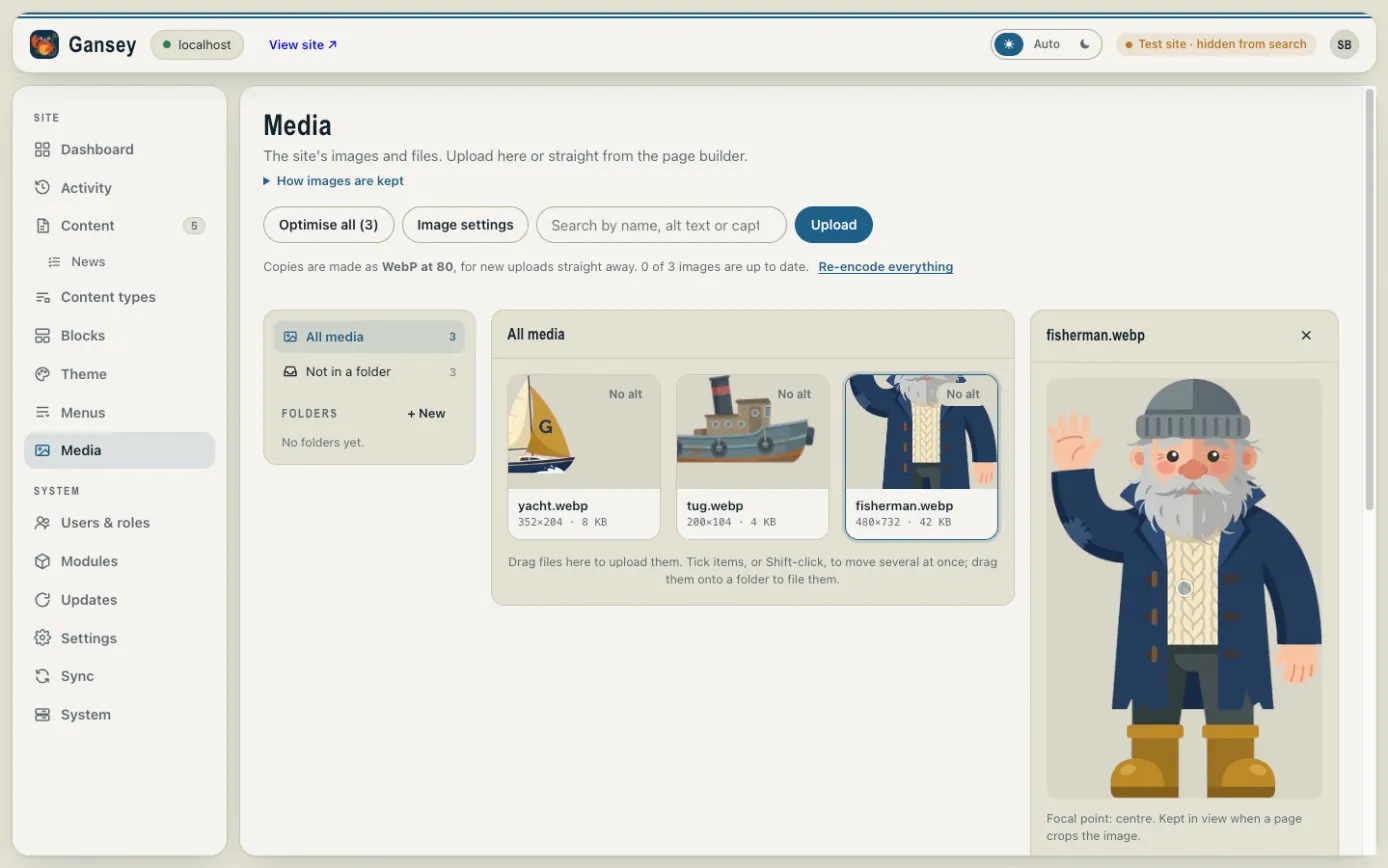
Media is your site's library of pictures, videos and documents (such as PDF menus or price lists). Everything you upload is kept here, ready to use on any page.
Uploading
Click Upload and choose files from your computer, or simply drag files from your computer onto the screen. You can also upload straight from the page builder when you add a picture.
Large photos are fine: Gansey makes smaller copies for phones and tablets automatically, so pages stay quick.
Describing a picture (alt text)
Click a picture to see its details. Fill in Alt text: a short description of what the picture shows, such as "A three-tier wedding cake with white roses". People who use screen readers hear it, and search engines read it too. Pictures without it are marked No alt.
You can also add a Caption, and click on the picture to set its focal point: the part that should always stay in view when a page crops it.
Swapping a picture everywhere
Replace file… swaps a picture for a new one. Every page that uses it shows the new picture straight away, so you don't have to change each page. The details panel also shows where each picture is used.
Folders
Click + New next to Folders to make a folder, then drag pictures onto it to keep things tidy.
Deleting
Select an item and click Delete. Check where it's used first, so you don't leave a gap on a page.