As well as pages, your site may have items that share the same layout, such as news posts, projects, team members or events. Whoever built your site sets these up. They're listed under Content in the menu, each with its own tab.
This guide uses news as the example; other kinds work the same way.
Adding a news post
- Click Content, then the News tab (or News under Content in the menu).
- Type a title next to New news post and click Create.
- Fill in the post and click Save.
Changing a post
Click Edit next to the post.
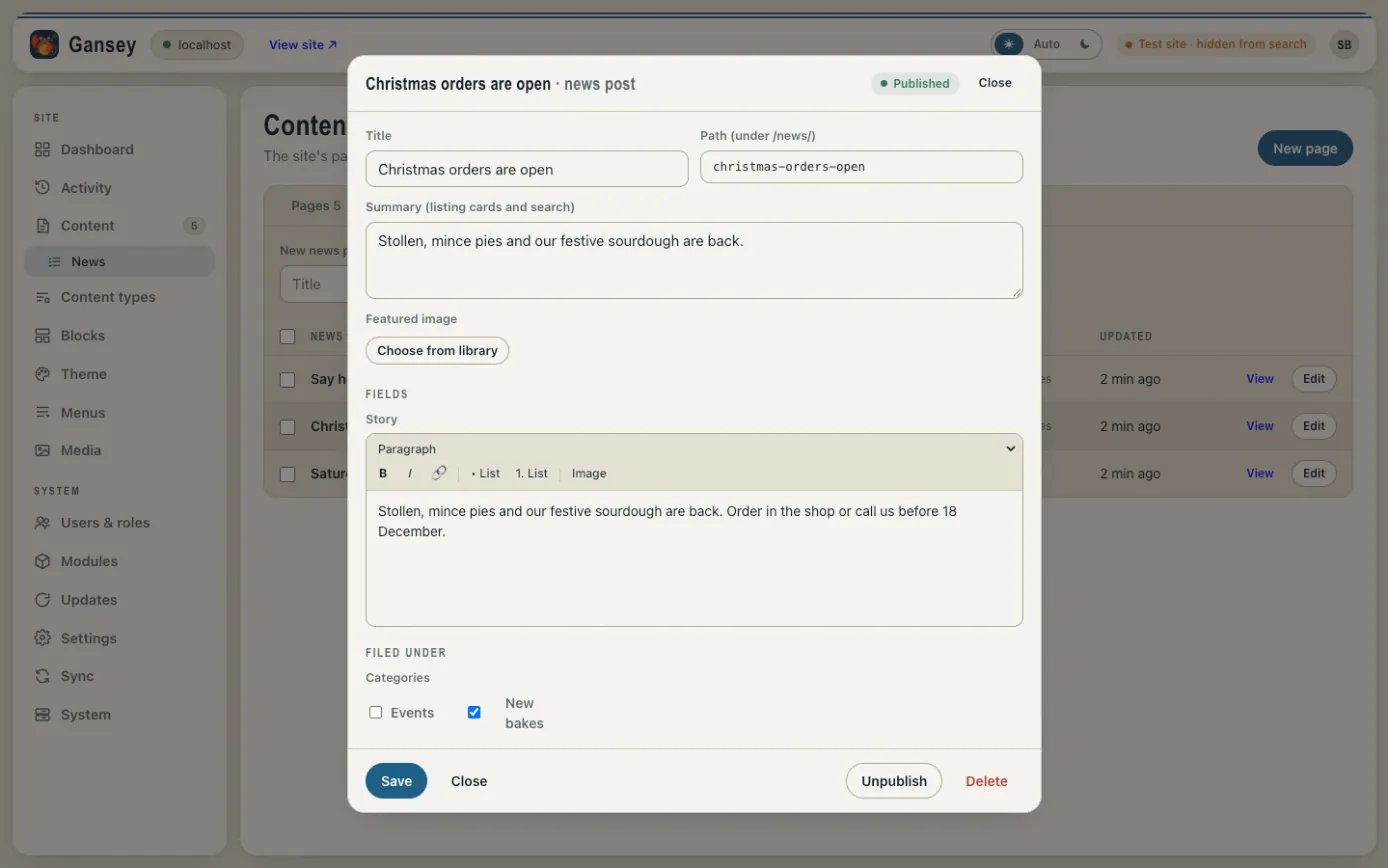
- Title and Path: the post's name and the end of its web address.
- Summary: a sentence shown on listing pages and in search results.
- Featured image: click Choose from library to pick a picture. See Pictures and files.
- Story (or whatever your site calls the main text): type here like you would in an email. Use the toolbar for headings, bold, links, lists and pictures.
- Filed under: tick the categories the post belongs to.
Click Save. A post that's already published changes on the site straight away when you save. To take it off the site, click Unpublish; to remove it completely, click Delete.