Pages are edited in the page builder. Open it by clicking Edit next to a page under Content. You see the real page in the middle, just as visitors will, and change it in place.
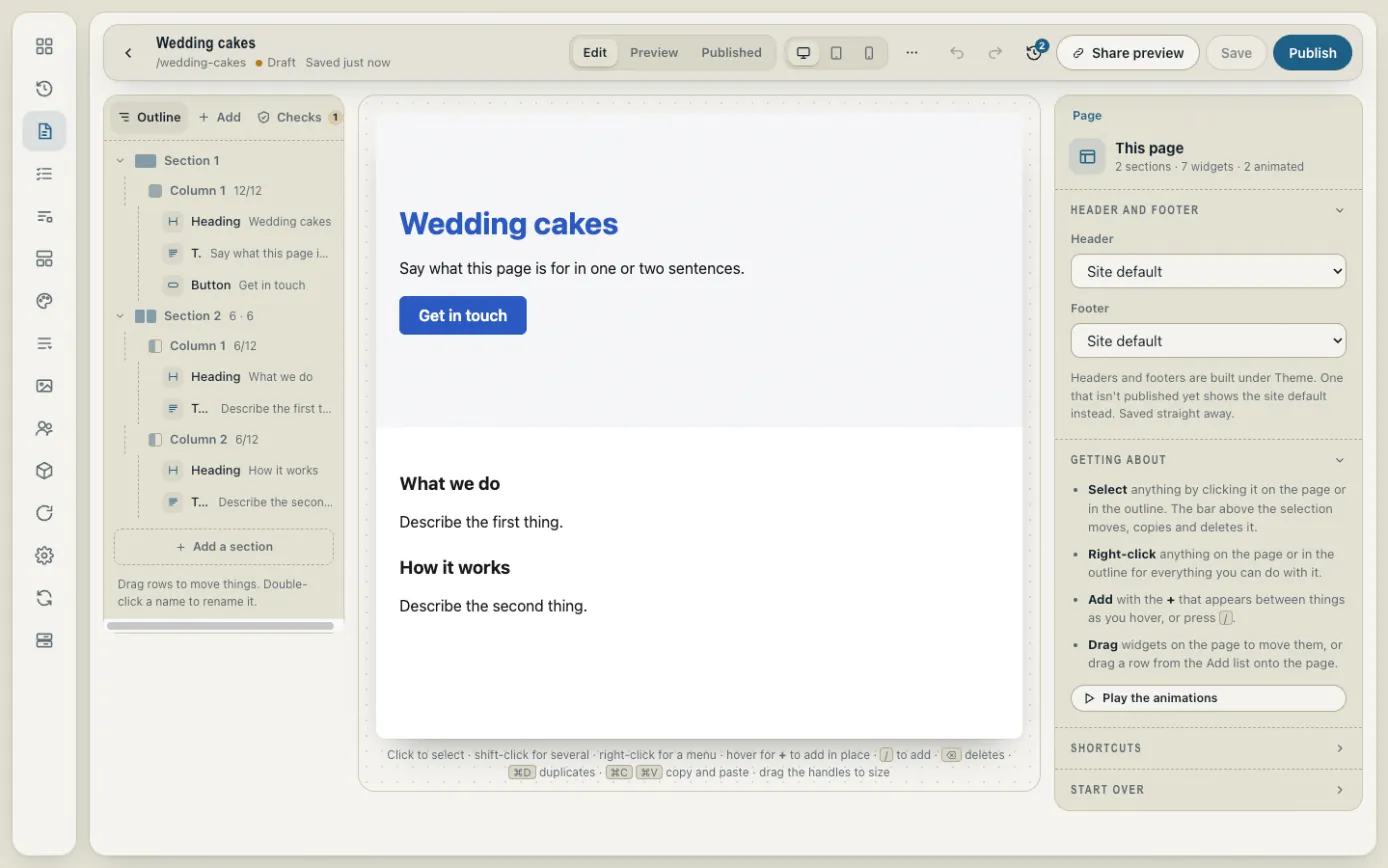
The builder has three parts:
- On the left, the Outline lists everything on the page, top to bottom.
- In the middle is your page.
- On the right are the settings for whatever you've selected.
How a page is put together
A page is made of sections (bands that run across the page). Each section has one or more columns, and each column holds widgets: a heading, a piece of text, a picture, a button and so on.
Changing words and pictures
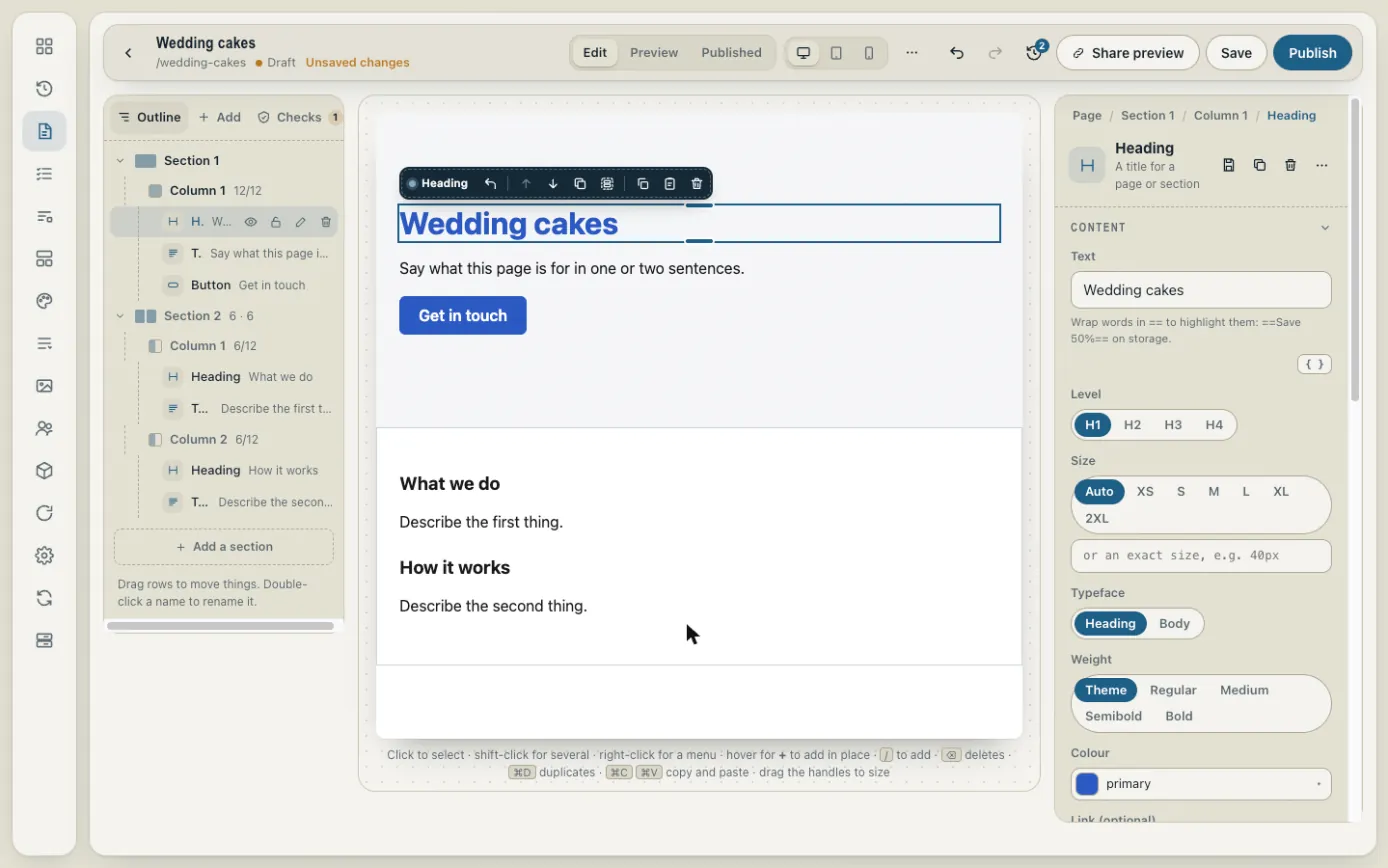
Click anything on the page, or its name in the outline, to select it. Its settings appear on the right. Change the text there, pick a different picture, or adjust the size and colour. The page updates as you type.
Adding something new
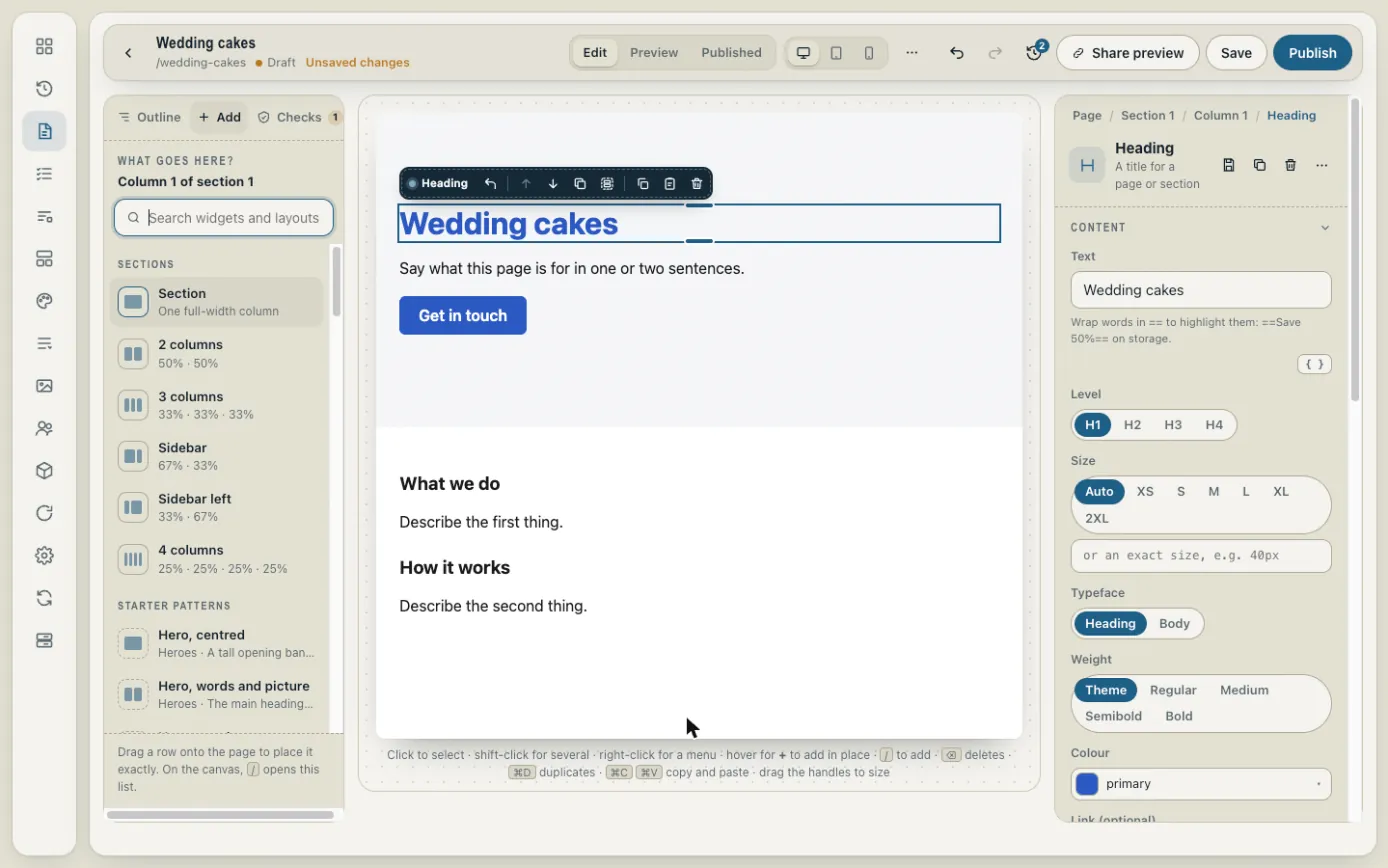
Click Add at the top of the left-hand panel. Choose a layout of columns, a ready-made pattern (such as a pricing table or questions and answers), or a single widget. Drag it onto the page where you want it. You can also hover between things on the page and click the + that appears.
Moving and removing things
- Drag a widget on the page, or a row in the outline, to move it.
- When something is selected, a small bar above it has buttons to move it up or down, copy it or delete it.
- Right-click anything for a menu of everything you can do with it.
- Made a mistake? Use the undo arrow at the top (or press Ctrl+Z, or ⌘Z on a Mac).
Seeing it on a phone
The three screen buttons at the top (computer, tablet and phone) show how the page looks on each. Check the phone view before you publish: most visitors will be on a phone.