Each page has settings for its title, address and where it appears. Open them from Content: click Settings next to the page.
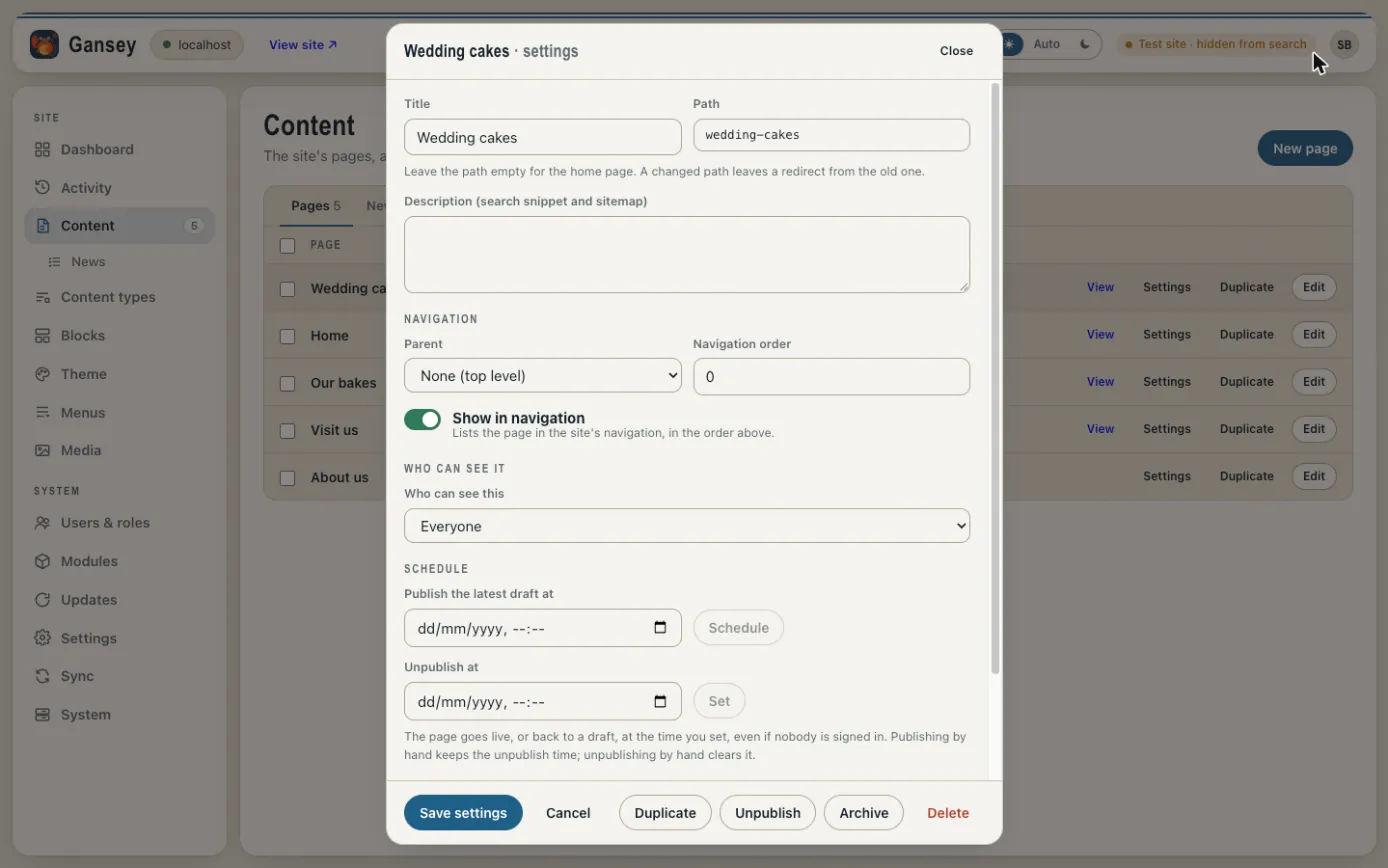
Title, address and description
- Title: the page's name, shown in browser tabs and search results.
- Path: the end of the page's web address. If you change it, anyone using the old address is sent to the new one automatically.
- Description: a sentence or two about the page. Search engines like Google often show this under your page's title.
Navigation
- Parent: put the page "under" another one, for example "Wedding cakes" under "Our bakes".
- Navigation order: lower numbers come first.
- Show in navigation: whether the page is listed in your site's navigation. If your site uses Menus, the menu decides what's linked instead.
Who can see it
Usually Everyone. You can also limit a page to people who are signed in, or to people with certain roles.
Schedule
Set a date and time under Publish the latest draft at and click Schedule, and the page goes live by itself at that time. Unpublish at does the opposite, which is handy for offers that end.
Preview link
Make a preview link creates a link to the draft that anyone can open for three days, without signing in.
The buttons at the bottom
- Save settings keeps your changes.
- Duplicate makes a copy of the page as a new draft.
- Unpublish takes the page off the site but keeps it as a draft.
- Archive puts the page away without deleting it.
- Delete removes it. You'll be asked to confirm.