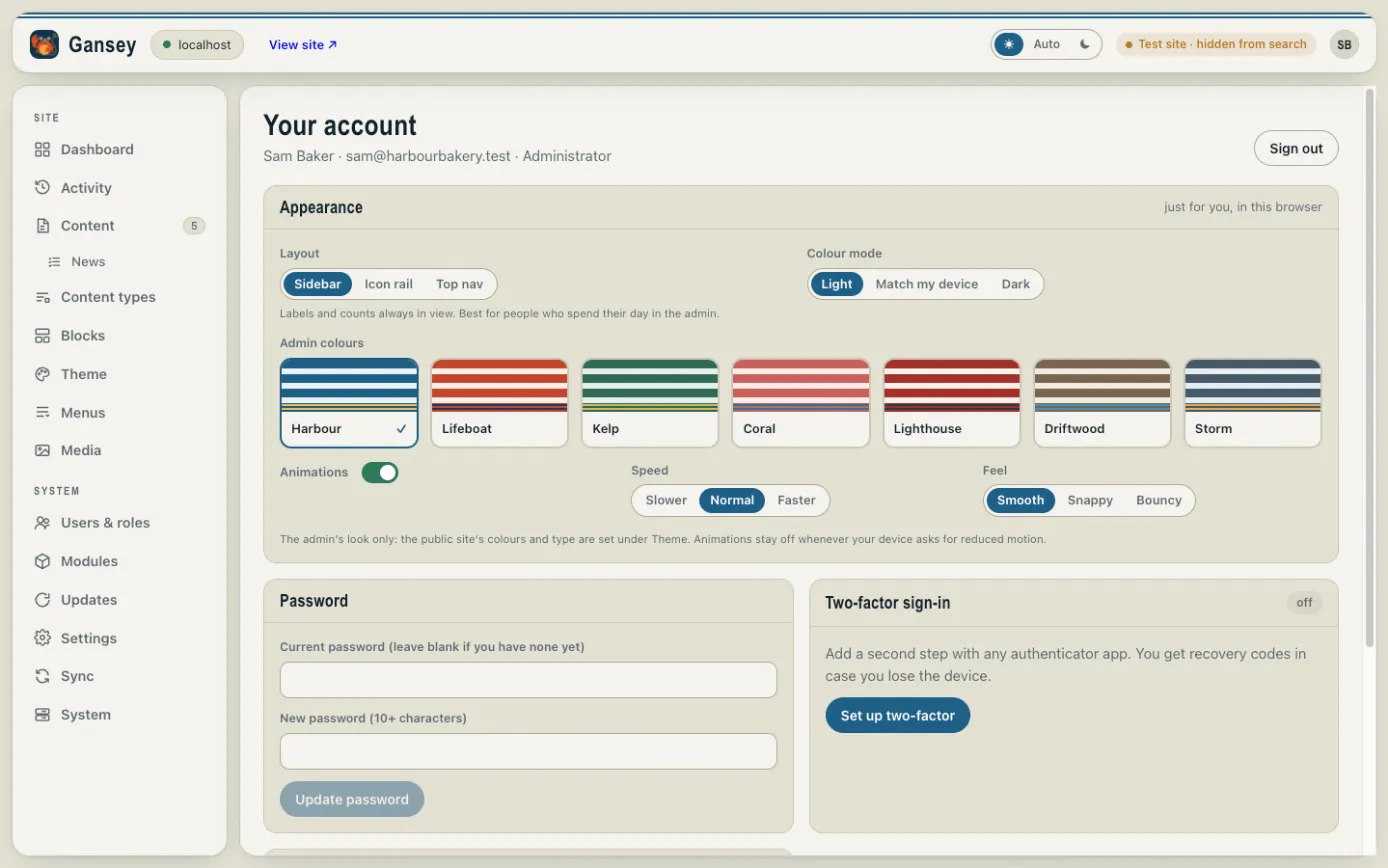
Click your initials in the top right corner to open Your account. Here you can change your password, make signing in safer, and choose how the admin looks for you.
Changing your password
Under Password, type your current password, then a new one of at least 10 characters, and click Update password. If you've never had a password (for example, you always use emailed links), leave the current password empty.
Making signing in safer
- Two-factor sign-in adds a second step: after your password, you type a code from an authenticator app on your phone. Click Set up two-factor and follow the steps. Keep the recovery codes you're given somewhere safe in case you lose your phone.
- Passkeys let you sign in with your fingerprint, face or device code instead of a password. Give the passkey a name (such as "Phone" or "Laptop") and click Add a passkey. Add one on each device you use.
How the admin looks
Under Appearance you can choose the layout of the menu, light or dark mode, the admin's colours and how lively its animations are. These only change the admin for you, in this browser. They don't change your public website.